
 Julian Steenbakker
2327953c25
Julian Steenbakker
2327953c25
|
5 年前 | |
|---|---|---|
| .github | 5 年前 | |
| .resources | 6 年前 | |
| android | 5 年前 | |
| example | 5 年前 | |
| ios | 5 年前 | |
| lib | 5 年前 | |
| .gitignore | 6 年前 | |
| CHANGELOG.md | 5 年前 | |
| LICENSE | 7 年前 | |
| README.md | 5 年前 | |
| analysis_options.yaml | 5 年前 | |
| pubspec.yaml | 5 年前 | |
README.md
QR Code Scanner

A QR code scanner that works on both iOS and Android by natively embedding the platform view within Flutter. The integration with Flutter is seamless, much better than jumping into a native Activity or a ViewController to perform the scan.
Breaking changes
In version 0.2.0 the plugin returns a Barcode object instead of QR a String. This object includes the type of code, the code itself and on Android devices the raw bytes. (#63)
Warning
If you are using Flutter Beta or Dev channel (1.25 or 1.26) you can get the following error:
java.lang.AbstractMethodError: abstract method "void io.flutter.plugin.platform.PlatformView.onFlutterViewAttached(android.view.View)"
This is a bug in Flutter which is being tracked here: https://github.com/flutter/flutter/issues/72185
There is a workaround by adding android.enableDexingArtifactTransform=false to your gradle.properties file.
Screenshots
| Android | |
|---|---|
|
|
|
| iOS | |
|
|
|

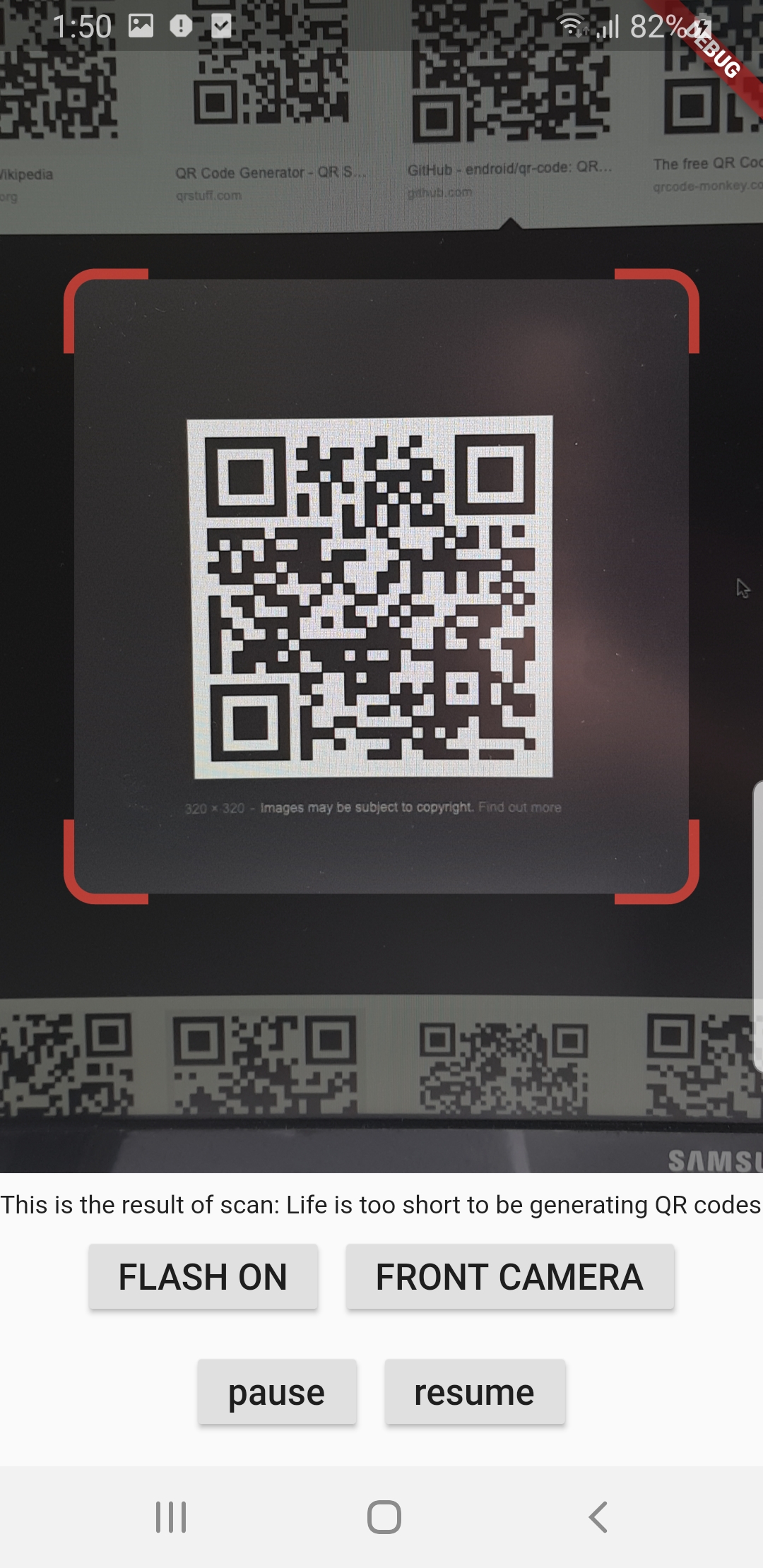
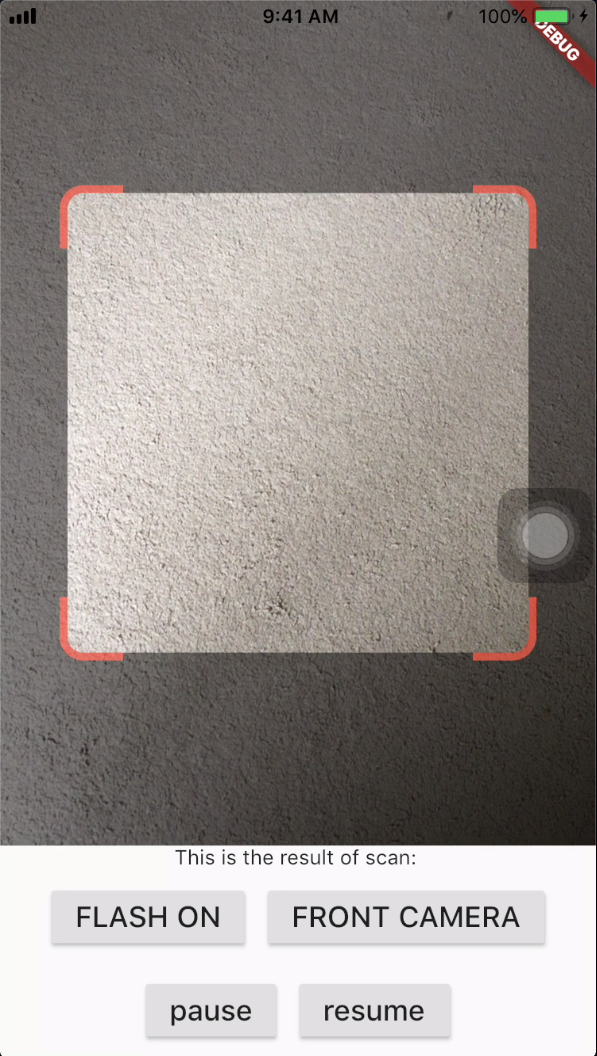
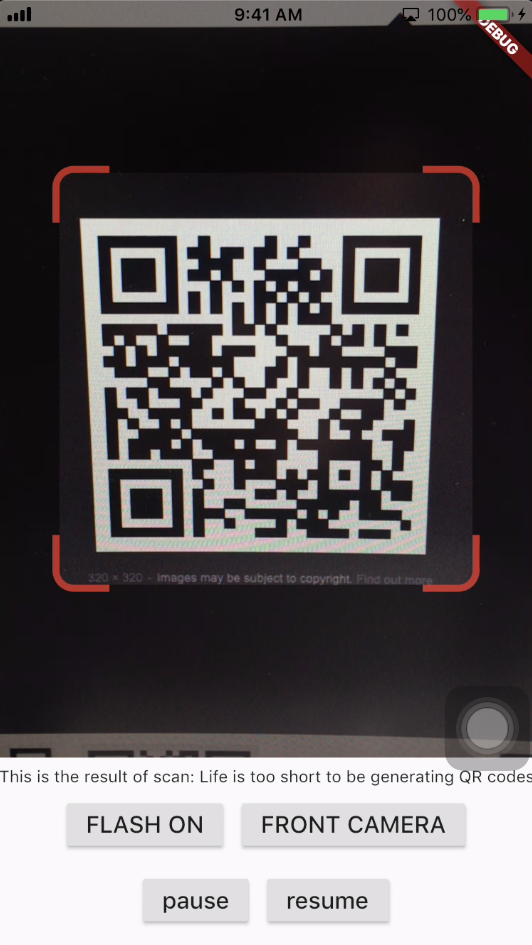
Get Scanned QR Code
When a QR code is recognized, the text identified will be set in ‘qrText’.
class _QRViewExampleState extends State<QRViewExample> {
  final GlobalKey qrKey = GlobalKey(debugLabel: 'QR');
  Barcode result;
  QRViewController controller;

  // In order to get hot reload to work we need to pause the camera if the platform
  // is android, or resume the camera if the platform is iOS.
  @override
  void reassemble() {
    super.reassemble();
    if (Platform.isAndroid) {
      controller.pauseCamera();
    } else if (Platform.isIOS) {
      controller.resumeCamera();
    }
  }

  @override
  Widget build(BuildContext context) {
    return Scaffold(
      body: Column(
        children: <Widget>[
          Expanded(
            flex: 5,
             // To ensure the Scanner view is properly sizes after rotation
             // we need to listen for Flutter SizeChanged notification and update controller
            child: NotificationListener<SizeChangedLayoutNotification>(
              onNotification: (notification) {
                Future.microtask(() => controller?.updateDimensions(qrKey));
                return false;
              },
              child: SizeChangedLayoutNotifier(
                key: const Key('qr-size-notifier'),
                child: QRView(
                  key: qrKey,
                  onQRViewCreated: _onQRViewCreated,
                ),
              ),
            ),
          ),
          Expanded(
            flex: 1,
            child: Center(
              child: (result != null) ?
                        Text('Barcode Type: ${describeEnum(result.format)}   Data: ${result.code}')
                      : Text('Scan a code'),
            ),
          )
        ],
      ),
    );
  }

  void _onQRViewCreated(QRViewController controller) {
    this.controller = controller;
    controller.scannedDataStream.listen((scanData) {
      setState(() {
        qrText = scanData;
      });
    });
  }

  @override
  void dispose() {
    controller?.dispose();
    super.dispose();
  }
}
iOS Integration
In order to use this plugin, add the following to your Info.plist file:
<key>io.flutter.embedded_views_preview</key>
<true/>
<key>NSCameraUsageDescription</key>
<string>This app needs camera access to scan QR codes</string>
Flip Camera (Back/Front)
The default camera is the back camera.
controller.flipCamera();
Flash (Off/On)
By default, flash is OFF.
controller.toggleFlash();
Resume/Pause
Pause camera stream and scanner.
controller.pauseCamera();
Resume camera stream and scanner.
controller.resumeCamera();
SDK
Requires at least SDK 21 (Android 5.0).
TODOs
- iOS Native embedding is written to match what is supported in the framework as of the date of publication of this package. It needs to be improved as the framework support improves.
- In future, options will be provided for default states.
- Finally, I welcome PR’s to make it better :), thanks
Credits
- Android: https://github.com/zxing/zxing
- iOS: https://github.com/mikebuss/MTBBarcodeScanner
- Special Thanks To: LeonDevLifeLog for his contributions towards improving this package.